
From PDF to Whiteboard Style Visuals: What the Tools Can Do Now?
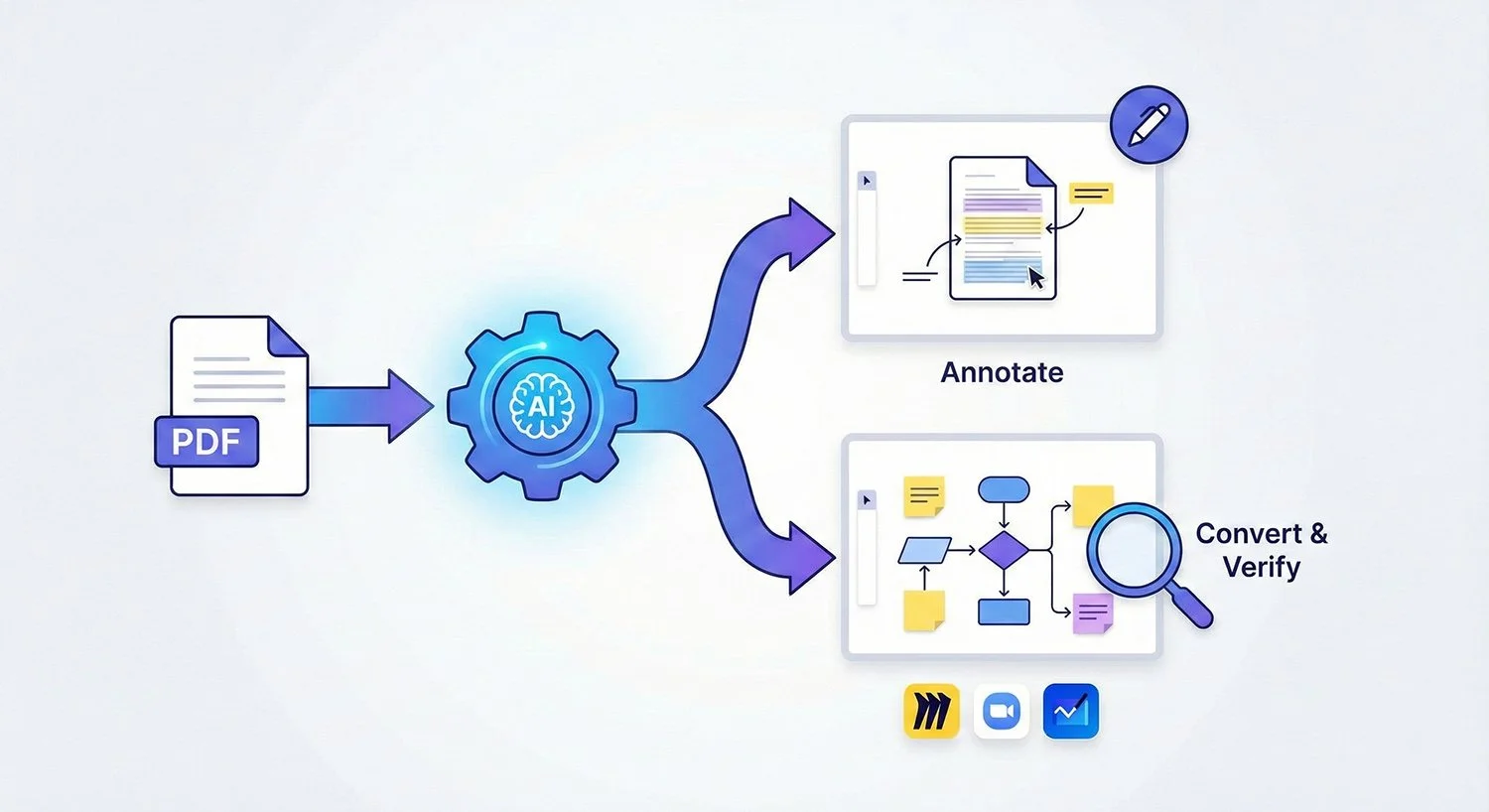
Image Credit: Jacky Lee
Turning a PDF into a whiteboard style visual has become a common workflow in teaching, design reviews, governance workshops, and remote collaboration. The goal is usually either to place the PDF on an infinite canvas for markup, or to rebuild the content as editable notes, shapes, and connectors that behave like a true whiteboard.
Most mainstream whiteboard platforms support the first option directly. The second option is where AI features and conversion tools are starting to matter, but they still require human checking, especially for numbers, compliance statements, and diagrams.














What “Any PDF” Depends On
Not all PDFs behave the same. A born digital PDF contains selectable text and vector objects. A scanned PDF is often just page images, which limits search, copy and structure extraction unless you run OCR first.
Adobe explains that scanned PDFs contain image data rather than searchable text, and that OCR converts image text into selectable, searchable text.





















Two Practical Paths to A Whiteboard Result
Most teams end up choosing one of these approaches, depending on whether they need fidelity to the original layout or editable whiteboard objects.
Import the PDF as pages, then annotate
This keeps the original layout and is reliable for review and teaching. You annotate using pens, highlights, callouts, and sticky notes, but the PDF remains a placed object rather than being transformed into editable diagram parts.
Convert or reconstruct the content into editable objects
This aims to turn the PDF content into sticky notes, shapes, connectors, and frames. It is better for workshops and planning sessions where the diagram will evolve, but it is also the approach most likely to introduce mistakes if the conversion or summarisation is not checked carefully.
























What Major Whiteboard Platforms Support Today
Microsoft Whiteboard: Microsoft’s support documentation says Whiteboard can insert documents, including PDFs from a local PC and PDFs or PowerPoint files via OneDrive, and it allows page selection when uploading. It also notes the feature requires Optional Connected Experiences to be enabled, and that restrictive sensitivity labels are not supported for document insertion.
Zoom Whiteboard: Zoom support documentation lists PDF as a supported upload format and warns that uploading PPTX, DOCX, or PDF without an included font library may lead to default font rendering and spacing issues. Zoom also documents a maximum file size of 20 MB for a single PDF upload. Zoom also notes that document and image upload can be enabled or disabled by administrators, which affects whether users can use this workflow in a managed environment.
Miro: Miro help documentation lists PDFs as supported uploads, describes page turning for PDFs on the board, and states a maximum file size of 30 MB for uploads to a board. On the AI side, Miro documents AI assisted diagram and mind map workflows, including digitising diagrams and editing outcomes on the board.
FigJam: Figma’s help documentation states that FigJam supports importing PDF files. Figma also documents importing Mural content into FigJam using Mural PDF files, which signals that PDF is used as an interchange format in some whiteboard migrations.
Confluence whiteboards: Atlassian support documentation states that Confluence whiteboards currently only support PDF or image file importing, including workflows that begin with exporting from other tools and importing the resulting PDF into a whiteboard.
Mural: Mural support documentation states users can import documents and other files onto the canvas from desktop and connected cloud services, which supports the basic “place the PDF and annotate” path.






















Conversion and Migration Tools are A Separate Category
Some platforms now treat PDFs as a bridge between whiteboard ecosystems, with dedicated converters to turn a PDF export back into editable objects.
Zoom documents migration and import options that use PDF export and import methods for Miro and Mural, and it describes conversion of items such as text, notes, images, shapes, connectors, labels, and frames into whiteboard objects. Zoom also publishes a specific support article describing migration from Mural by exporting Mural boards as PDFs, importing them into Zoom Whiteboard, and extracting content using a Mural optimised converter.
This is different from simply uploading a PDF to annotate. It is closer to reconstruction, where checking is essential.


















A Change to Watch in Microsoft Whiteboard Document Insertion
Microsoft’s public Whiteboard support page currently states that PDFs and PowerPoint files can be inserted via OneDrive.
Separately, public trackers that mirror Microsoft 365 admin Message Center posts report that Microsoft Whiteboard will begin retiring the Insert Document feature for inserting PDFs and PowerPoint files from OneDrive for Business and SharePoint starting January 2026, while local PDF insertion on the Windows native app remains. These reports reference Message Center notice MC1189912.
Because Message Center content is normally accessed inside a Microsoft 365 tenant, teams relying on cloud based insertion should verify MC1189912 in their own admin centre and test their exact client and tenant configuration before assuming the workflow will remain unchanged.























A Workflow Checklist that Stays Accurate Across Tools
Identify the PDF type: If scanned, run OCR so text becomes searchable and selectable before you attempt extraction or restructuring.
Choose the outcome you need: If you need layout fidelity, import pages and annotate. If you need editable structure, plan for conversion or reconstruction and time for checking.
Watch file limits and rendering risks: For Zoom Whiteboard, confirm PDF file size and consider embedded font libraries to reduce layout changes. For Miro, keep upload size limits in mind for large reports or technical drawings.
Treat AI outputs as drafts: Where AI generates editable diagrams, follow vendor guidance to inspect and adjust the result.
Account for admin controls and governance: In Zoom Whiteboard, uploading documents and images may be restricted by admin settings. In Microsoft Whiteboard, document insertion depends on connected experiences settings and sensitivity label behaviour.
















 TheDayAfterAI News
We are a leading AI-focused digital news platform, combining AI-generated reporting with human editorial oversight. By aggregating and synthesizing the latest developments in AI — spanning innovation, technology, ethics, policy and business — we deliver timely, accurate and thought-provoking content.